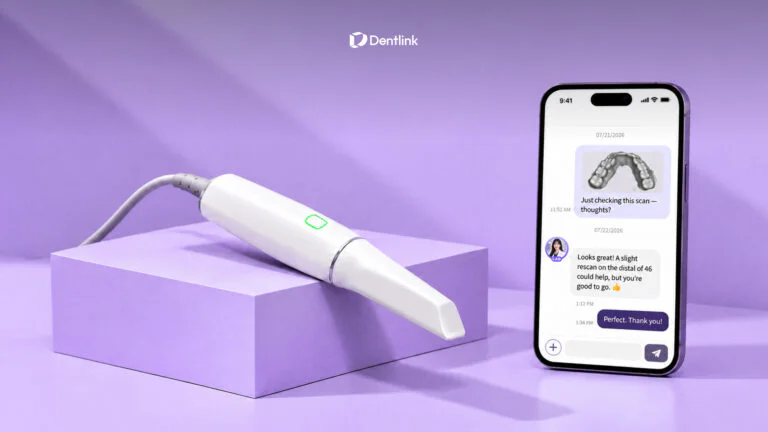
How to Connect Your Intraoral Scanner to a New Dental Lab
Trying a new dental lab can sound like more work than it should.
You may already have an intraoral scanner, an established digital workflow, and one or more labs connected to your system. So when you consider testing another lab, a practical question comes up quickly:
Do I need to change anything in my current scanner workflow?
Usually, no.
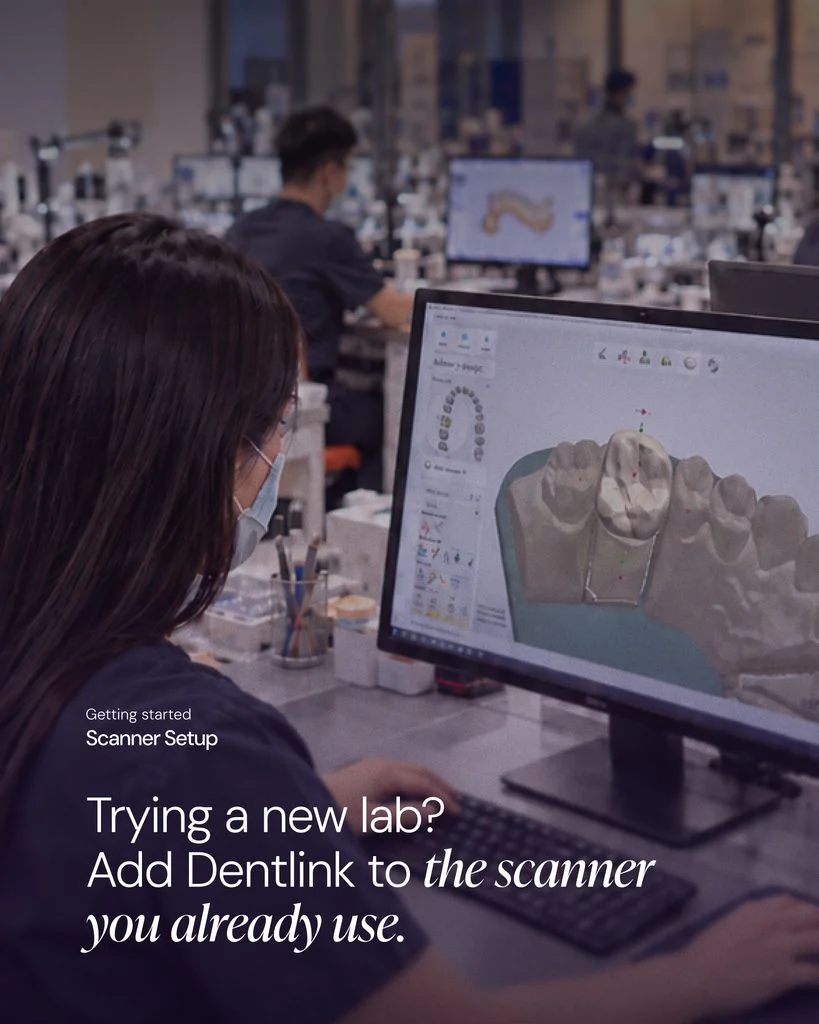
With most modern scanner systems, you can add another dental lab to your existing lab list and choose where to send each case.
At Dentlink, there is no new software to learn. Add Dentlink once to the scanner you already use, then select us whenever you want to send a case. Current setup instructions are available for iTero, Medit Link, 3Shape, DS Core, Carestream, DEXIS, Planmeca, SHINING 3D, Alliedstar, and Straumann.
In other words:
Trying a new lab does not have to mean rebuilding your digital workflow.
Can You Use Your Current Intraoral Scanner With a New Dental Lab?
In most cases, yes.
A modern intraoral scanner dental lab workflow is designed to let practices send digital impressions to more than one laboratory.
You do not necessarily have to replace your existing lab connection.
Instead, another dental lab can simply become one more option in your scanner software.
For example, Dentlink explains the process in three basic moves:
- Open your lab or partner list.
- Find or add Dentlink.
- Connect and select Dentlink when you want to send a case.
Your current lab can remain exactly where it is.
That matters because evaluating a new lab should not require a full operational switch before you know whether the relationship is right for your practice.
If you are considering a new laboratory, it can make more sense to compare one case before changing your entire workflow. Dentlink explores that approach further in Dental Lab Comparison: Compare One Crown Before You Switch Labs.
How Do You Connect an Intraoral Scanner to a Dental Lab?
The exact buttons vary by scanner, but the principle is usually similar.
iTero
For iTero, practices can open Settings or Case Routing, go to My Labs, choose Add Lab, and search for Dentlink by name or lab code.
Once connected, Dentlink appears as an option under Send to Lab.
Medit Link
For Medit Link, open Partners, search for Dentlink, and request the partnership.
After approval, Dentlink appears in your partner list.
3Shape
In the 3Shape portal, go to Connections, choose Add Connection, search for Dentlink, and connect.
Once approved, Dentlink appears as an active connection.
Other Scanner Systems
Dentlink also provides setup guidance for:
- DS Core
- Carestream
- DEXIS
- Planmeca
- SHINING 3D
- Alliedstar
- Straumann
If your scanner is not listed, you can still send an STL file from an open system.
For the exact setup steps for your scanner, see the Dentlink Scanner Setup Guide.
What Happens After You Send an Intraoral Scan?
Connecting the scanner is the easy part.
What happens after you press Send has a much bigger impact on the restoration.
A digital impression is still only clinical data. The lab has to interpret that data, review the case, design the restoration, manufacture it, and check whether the result reflects the prescription.
That is why a good scan alone does not guarantee a good crown.
At Dentlink, the digital case is reviewed before fabrication. According to Dentlink’s current workflow, the technician reviews details such as margins, undercuts, and bite before production moves forward, and contacts and occlusion are checked during CAD design.
This is the idea behind:
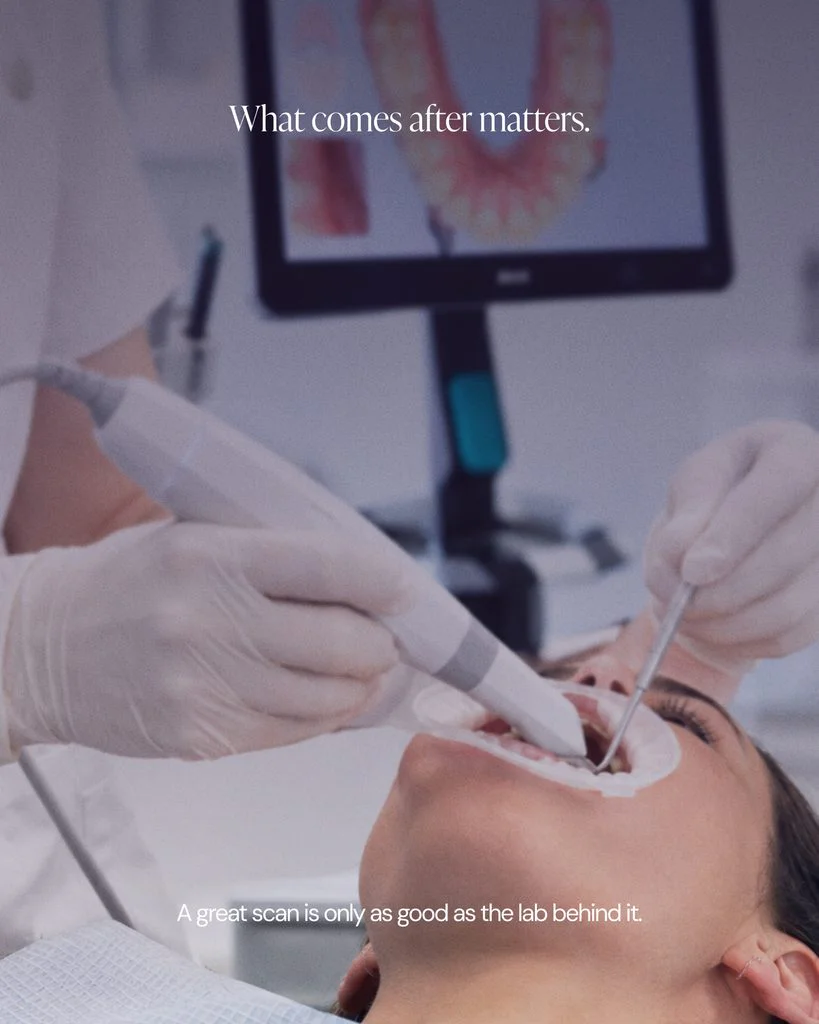
What comes after the scan matters.
A scanner captures the clinical information.
The dental lab turns that information into the restoration.
Does Scan Quality Still Matter?
Absolutely.
A digital workflow cannot correct every clinical limitation in the scan itself.
Margins, tissue management, bite records, missing data, and scan artifacts can still affect what the lab has available to work with.
But this is also where communication between the dentist and technician matters.
Instead of automatically rejecting a questionable scan—or moving forward without clarification—an experienced technician can review the data and identify whether more information is actually needed.
Dentlink discusses this in more detail in Should I Rescan This? What Your Dental Lab Looks for in an Intraoral Scan. The article explains that scan quality is important, but so is the technician’s ability to review the scan and communicate before fabrication begins.
A Great Scanner Still Needs the Right Dental Lab
Dentists invest heavily in digital technology.
Modern scanners can capture highly detailed clinical information and make case transfer much faster than traditional workflows.
But the scanner is still the beginning of the restorative process.
The quality of the final restoration also depends on:
- how the scan is reviewed
- how the margins are interpreted
- how contacts and occlusion are designed
- how the restoration is milled or printed
- how the final case is finished and checked
- how quickly questions are communicated back to the dentist
That is why choosing a digital dental lab should involve more than asking, “Can you accept my scanner?”
A better question is:
What happens after you receive my scan?
Technology supports the workflow, but the technician behind the case still matters. Dentlink explores that distinction in Dental Technician Experience: Why It Matters for Crown Quality.
Do You Have to Stop Using Your Current Dental Lab?
No.
Adding Dentlink does not remove your existing lab connection.
Dentlink’s current scanner guide specifically notes that if you already work with another lab, nothing changes for that laboratory. Dentlink simply becomes another name in your scanner’s lab list, and you choose where to send each case.
That makes testing a new lab much easier.
Instead of making a full switch first, you can:
Keep your current workflow.
Keep your current scanner.
Send one case.
Compare the result.
For many practices, that is a more practical way to evaluate a new dental lab partner.
Which Intraoral Scanners Work With Dentlink?
Dentlink currently provides direct setup instructions for:
- iTero
- Medit Link
- 3Shape
- DS Core
- Carestream
- DEXIS
- Planmeca
- SHINING 3D
- Alliedstar
- Straumann
Dentlink also accepts STL files from other open scanner systems.
If several people in your practice handle scanner submissions, the connection does not necessarily have to be completed by the dentist. Dentlink notes that the team member who normally operates the scanner software can follow the setup process.
That can make onboarding a new lab even simpler.
What Should You Look for in an Intraoral Scanner Dental Lab?
If you are considering sending digital cases to a new lab, ask more than whether your scanner is compatible.
Useful questions include:
- Can I connect from the scanner I already use?
- Do I need any additional software?
- Who reviews my scan before the case enters production?
- Can the technician contact me directly if something looks questionable?
- How are margins, contacts, and occlusion checked?
- What happens if the restoration needs to be remade?
- Can I test the lab with one case before making a larger change?
Those questions help reveal whether the lab is simply able to receive digital impressions, or whether it has a real digital workflow behind them.
Try a New Dental Lab Without Changing Your Workflow
Testing a new lab does not have to mean replacing everything you already use.
If your practice already works digitally, Dentlink can fit into the workflow you already have.
Add Dentlink once.
Send a case when you are ready.
Your existing lab connections can stay in place, and your first eligible case with Dentlink is currently offered free, with no card or contract required. Dentlink lists a crown, implant crown, or linkGuide among the eligible first cases.
The scan is just the start. What comes after matters.
👉 Find your scanner and see the exact setup steps
Then send your first case and see how Dentlink fits into your workflow.
Made by Masters.
Frequently asked questions
Can I connect my intraoral scanner to more than one dental lab?
Do I need new software to send scans to Dentlink?
Which intraoral scanners can send cases to Dentlink?
Can my dental assistant connect the scanner to the lab?
Can I try Dentlink without switching dental labs?
What happens after an intraoral scan reaches the dental lab?
Your first crown is on us.
Free implant crown, free scanbody kit, and $200 off your next case. Just send your first scan.
Create your Dentlink account, register your clinic, add Dentlink as your lab in your scanner software, then send your case.